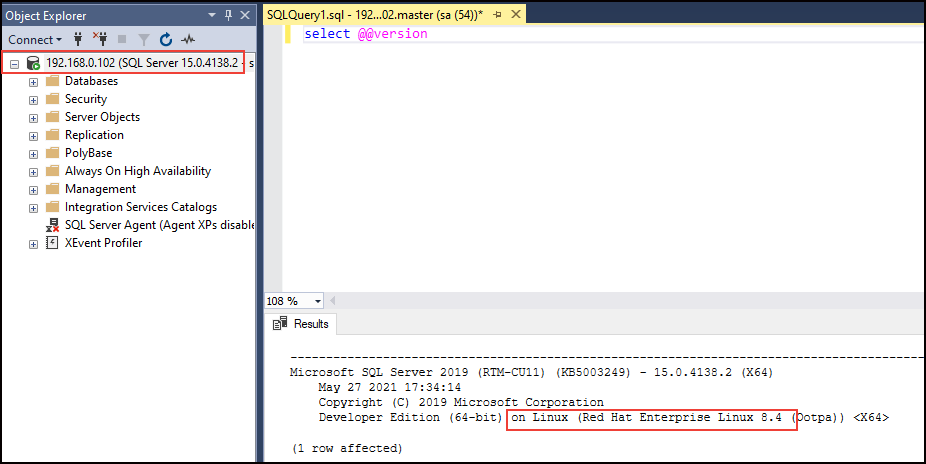
How to connect to SQL Server on Linux via SSMS
MSSQL, SQL On Linux Connect SQL Server on Linux via SSMS, SQL on Linux, SQL Server on LinuxBelow are the step by step process to connect to SQL Server on Linux via SQL Server Management Studio(SSMS)
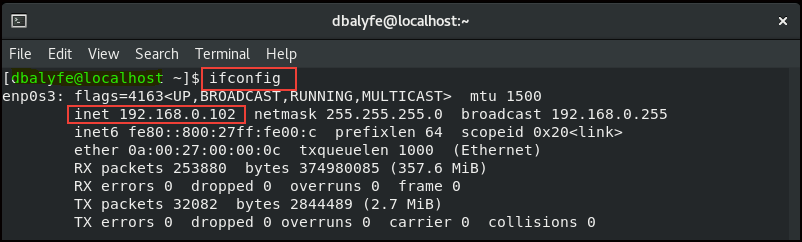
Step1: Identify IP Address of SQL Server on Linux
Step2: Connect to SQL Server via SSMS
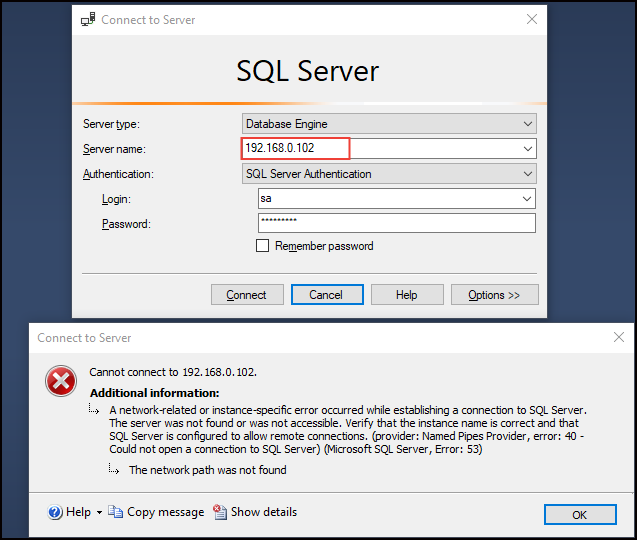
Now, we will supply above IP Address in SSMS and try to connect using SA account(same as that of Linux SA credentials), but we see that connectivity is failing.
Step3: Check if SQL Server port is opened
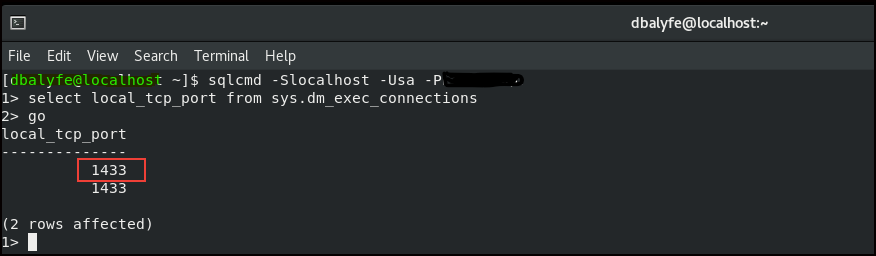
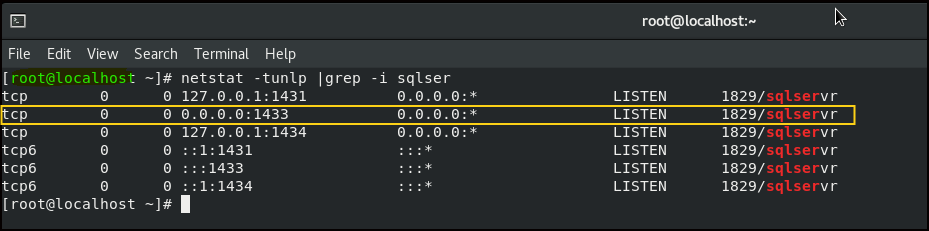
First we will check SQL Server port number and then we will check if port number is opened or not for remote connections and from below snap we see that SQL Server is listening on default port of 1433.
Now, from below command it is clear that no port is opened for remote connection to SQL Server.

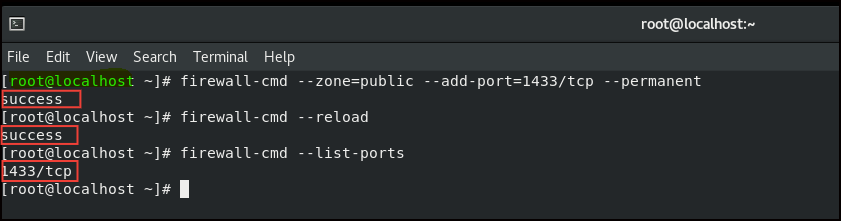
Step4: Open SQL Server port for remote connection
firewall-cmd –zone=public –add-port=1433/tcp –permanent — will open port#
firewall-cmd –reload –will reload firewall rules
firewall-cmd –list-ports — to verify port is open
Step5: Test SQL Server connectivity via SSMS
We are now able to connect to SQL Server.