How to connect to SQL Server on Linux via Putty
MSSQL, SQL On Linux connect SQL Server via putty, SQL on Linux, SQL Server on LinuxIn this article, we will see how to connect to SQL server via putty.
First check if you have putty downloaded on your machine. if it is not already installed, click here to download and then proceed for below steps.
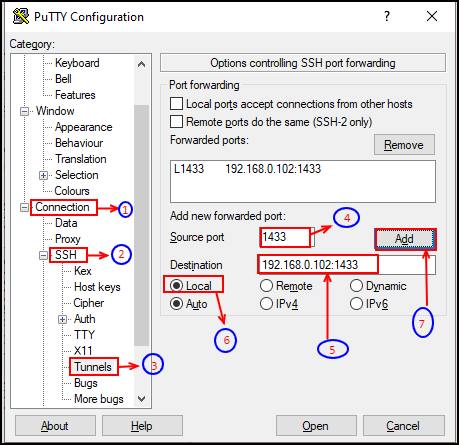
Open putty and navigate to connection — > SSH — > Tunnels
Source Port: 1433 — Port number of SQL Server(in my case it's default port)
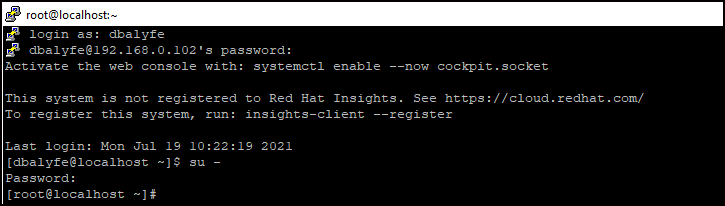
Destination: IP Address:Port# –this will be your server's IP Address and can be checked via ifconfig(as shown below)
click on "Local" (if not already selected)
click "Add" button and then click Open
To check the IP Address of your server:

Below is the snippet of changes to be done in putty session.
Test connectivity via Putty: